Turn Your Personal Computer into Hosting with Ngrok: The 2025 Guide
Turn Your Personal Computer into Hosting with Ngrok: The 2025 Guide
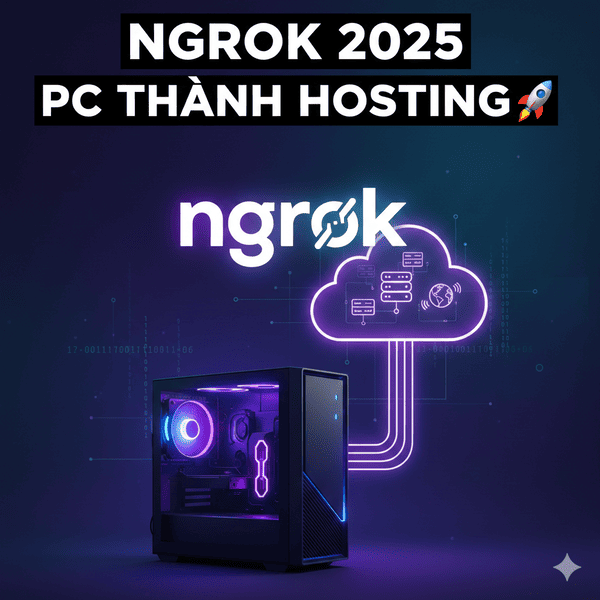
Do you want to share your web project with others, but don't want to spend money on hosting? Do you want to test your web application on your personal computer before deploying it to a live server? This article will guide you on how to turn your personal computer into a hosting server using Ngrok, an incredibly useful tool for web developers.
Ngrok allows you to create a secure tunnel from your computer to the internet, making it easy to share web applications, APIs, or any other service running on your machine. With Ngrok, you don't have to worry about configuring firewalls, NAT, or DNS. Everything is done in just a few simple command lines.
In this article, we will explore Ngrok, how to install, configure, and use it to turn your personal computer into a host. We will also discover the benefits and limitations of using Ngrok, as well as common mistakes and how to fix them.
What is Ngrok?
Ngrok is a cross-platform tool that allows you to create a secure tunnel from your personal computer to the internet. It helps you easily share web applications, APIs, or any other service running on your machine, without needing to configure firewalls, NAT, or DNS. Essentially, it creates a publicly accessible URL that points to your application running on localhost, reachable from anywhere in the world.
Ngrok was developed by Alan Shreve and first launched in 2011. Initially, it was designed to help web developers easily share their projects with clients and colleagues. However, Ngrok quickly gained popularity and is now widely used in various fields, from web application development to API testing and product demos.
The core characteristic of Ngrok is its simplicity and ease of use. With just a few simple command lines, you can create a secure tunnel and share your application with anyone in the world. Ngrok also supports various protocols, including HTTP, HTTPS, TCP, and TLS.
Benefits of using Ngrok
Using **how to turn your personal computer into a hosting server using Ngrok** offers many benefits for developers and users:
- Easy web application sharing: Ngrok allows you to easily share web applications running on localhost with others, without having to configure firewalls, NAT, or DNS.
- Testing web applications on multiple devices: You can use Ngrok to test your web application on various devices, including mobile phones, tablets, and desktop computers.
- Product demo for clients: Ngrok makes it easy to demo your product to clients, without needing to deploy it to a live server.
- Collaborative web application development: Ngrok allows you to collaborate with other developers on the same web application by sharing the Ngrok tunnel with them.
- Cost savings: Using Ngrok can help you save on hosting costs, especially during the application development and testing phases.
For example, I have used Ngrok to share a web application under development with a remote colleague. Instead of having to deploy the application to a temporary server, I simply ran Ngrok and shared the tunnel with my colleague. This saved us a significant amount of time and effort.
Key components of Ngrok
Ngrok consists of two main components:
- Ngrok Agent: This is the application you install on your personal computer. It is responsible for creating a secure tunnel to the Ngrok server and forwarding traffic between your computer and the internet.
- Ngrok Server: This is the server operated by Ngrok. It is responsible for managing Ngrok tunnels and providing public URLs to users.
When you run the Ngrok Agent, it connects to the Ngrok Server and requests the creation of a tunnel. The Ngrok Server generates a public URL and sends it back to the Ngrok Agent. After that, anyone accessing this public URL will be redirected to your application running on localhost.
The relationship between these components is: The Ngrok Agent acts as a client, connecting to the Ngrok Server to create and manage the tunnel. The Ngrok Server provides the tunnel creation service and public URL, allowing users to access your application from the internet.
Detailed guide on how to use Ngrok
Here is a detailed guide on **how to turn your personal computer into a hosting server using Ngrok**:
- Download and install Ngrok: Visit the official Ngrok website (ngrok.com) and download the version appropriate for your operating system. After downloading, unzip and install Ngrok.
- Register an Ngrok account: You need to register an Ngrok account to use its full features. Visit the Ngrok website and create a free account.
Connect your Ngrok account with the Ngrok Agent: After registering, you will receive an AuthToken. Use the following command to connect your account with the Ngrok Agent:
ngrok authtoken [Your AuthToken]- Run your web application: Ensure that your web application is running on localhost. For example, if your application is running on port 3000, make sure your server is listening on this port.
Create an Ngrok tunnel: Use the following command to create an Ngrok tunnel to your web application:
ngrok http 3000(Replace 3000 with the port your application is running on).
- Share the public URL: Ngrok will provide you with a public URL that you can share with others. Anyone accessing this URL will be redirected to your web application.
For example, if you want to share a web application running on port 8000, you will use the command:
ngrok http 8000. Ngrok will generate a URL in the format `http://[random_string].ngrok.io` and `https://[random_string].ngrok.io`. You can share this URL with anyone so they can access your application.
Common mistakes when using Ngrok
Here are some common mistakes when using **how to turn your personal computer into a hosting server using Ngrok** and how to fix them:
- Not connecting the Ngrok account: If you do not connect your Ngrok account with the Ngrok Agent, you will be limited in usage time and the number of simultaneous connections. **Fix:** Use the command `ngrok authtoken [Your AuthToken]` to connect your account.
- Using the wrong port: If you specify the wrong port when creating the Ngrok tunnel, users will not be able to access your application. **Fix:** Double-check the port your application is running on and use the correct port when creating the tunnel.
- Firewall blocking the connection: Sometimes, the firewall on your computer can block the connection from Ngrok. **Fix:** Check your firewall configuration and allow connections from Ngrok.
- Web application not running: If your web application is not running, users will not be able to access it through Ngrok. **Fix:** Make sure your web application is running and listening on the correct port.
- Using an outdated Ngrok version: Older Ngrok versions may contain bugs and be incompatible with new operating system versions. **Fix:** Always use the latest Ngrok version.
- Misusing Ngrok for commercial purposes: Ngrok has paid plans for commercial purposes. Using the free Ngrok for commercial purposes may violate the terms of service. **Fix:** If you are using Ngrok for commercial purposes, consider upgrading to a paid plan.
I once encountered a case where the firewall blocked the connection from Ngrok. After checking the firewall configuration, I found that Ngrok was blocked. After allowing the connection from Ngrok, the issue was resolved.
Frequently Asked Questions about Ngrok
Q: Is Ngrok safe?
A: Ngrok uses TLS encryption to protect data transmitted between your computer and the Ngrok server. However, you should still be cautious when sharing your public URL with others, as anyone with this URL can access your application.
Q: Is Ngrok free?
A: Ngrok has a free plan with limitations on usage time, the number of simultaneous connections, and other features. If you need to use Ngrok frequently or for commercial purposes, you should consider upgrading to a paid plan.
Q: Can I use Ngrok to share services other than web applications?
A: Yes, you can use Ngrok to share any service running on your computer, including APIs, databases, and other TCP services.
Q: How can I secure my web application when using Ngrok?
A: You should use common security measures for your web application, such as user authentication, data encryption, and preventing XSS and SQL injection attacks. Additionally, you can use Ngrok's security features, such as restricting access by IP address.
Q: Can I use Ngrok to create a game server?
A: Yes, you can use Ngrok to create a game server, but you need to use the TCP protocol instead of HTTP. Keep in mind that performance may be affected due to network latency.
If you need professional support for **website optimization** or **SEO**, please contact us at **khaizinam.io.vn**
Conclusion
Using **how to turn your personal computer into a hosting server using Ngrok** is an excellent solution for quickly and easily sharing and testing web applications. However, you need to be aware of the limitations and common mistakes to ensure safety and efficiency. We hope this article has provided you with useful information to start using Ngrok. Try it now and discover the benefits it offers!
If you want to learn more about other web development tools and techniques, visit our website at **khaizinam.io.vn**. We provide professional **website optimization** and **SEO** services to help you achieve online success.
Chia sẻ bài viết













Bình luận
Chia sẻ cảm nghĩ của bạn về bài viết này.