Introducing the Free JPG, PNG to WebP Image Resize, Compress Tool
Introducing the Free JPG, PNG to WebP Image Resize, Compress Tool

In the current digital age, website loading speed plays an extremely crucial role. Users are increasingly likely to abandon slow, unprofessional websites. One of the biggest factors affecting page load speed is the size and format of images. Have you ever wondered how to keep images sharp while ensuring your website loads lightning-fast?
Optimizing images not only helps improve the user experience but also positively impacts your SEO ranking. However, not everyone has specialized technical knowledge or owns expensive photo editing software. That's why free online tools are becoming increasingly popular and useful.
This article will introduce you to a comprehensive solution: the online JPG, PNG to WebP image resize, compress, and conversion tool at khaizinam.io.vn/img-compress. We will delve into how this tool works, the outstanding benefits it offers, as well as detailed instructions on how to use it so you can optimize your images most effectively.
Let's explore how to turn large-volume photos into light, website-ready files!
Table of Contents
1. Introducing the JPG, PNG to WebP Resize, Compress, Conversion Tool at khaizinam.io.vn/img-compress
2. Why is image optimization necessary for a website?
3. Key Components of the khaizinam.io.vn/img-compress tool
4. Detailed instructions on how to use the tool
5. Outstanding benefits of using the WebP format
6. Common mistakes in image optimization
1. Introducing the JPG, PNG to WebP Resize, Compress, Conversion Tool at khaizinam.io.vn/img-compress
The JPG, PNG to WebP resize, compress, and conversion tool at khaizinam.io.vn/img-compress is a free online service, designed to help users easily process and optimize images for use on websites or other online platforms. The tool focuses on three main functions: resizing, compressing file size, and efficiently converting image formats from popular formats like JPG, PNG to the WebP format.
In the context where page load speed is a key factor determining the success of a website, having small-sized, well-optimized images is absolutely essential. However, not everyone has enough technical knowledge or professional tools to do this. Understanding this need, khaizinam.io.vn has developed a simple, convenient, and completely free solution.
Development context: The explosion of visual content on the internet has placed high demands on page loading performance. Traditional image formats like JPG and PNG often have large file sizes, slowing down the loading process, affecting user experience, and even SEO rankings. The WebP format, developed by Google, has emerged as an alternative solution with superior compression capabilities while maintaining image quality.
Core features:
- Free and Easy to Use: No complicated registration or installation required; simply access and use. The interface is friendly and intuitive.
- Multifunctional: Integrates all three important tasks: resize, compress, and format conversion.
- Supports popular formats: Accepts JPG, PNG files as input.
- WebP format output: Converts to the advanced WebP format, offering high compression efficiency.
- Optimized for Web: Helps significantly reduce image file size without compromising display quality.
2. Why is image optimization necessary for a website?
Image optimization is not just an option but has become a mandatory requirement for anyone wanting to build a successful website. Here are the main reasons explaining its importance:
a) Improves page load speed:
- User Experience (UX): Statistics show that users tend to abandon a website if the page takes more than 3 seconds to load. Large images are the main "culprit" causing delays. Optimization helps the website load faster, keeping visitors on the page longer.
- Reduced Bounce Rate: When users wait too long, they quickly hit the "back" button to search for information elsewhere. Optimized images contribute to reducing the bounce rate.
b) Enhances SEO performance:
- Google's Ranking Factor: Google considers page speed one of the important factors for ranking websites in search results. Faster websites have a higher chance of achieving high rankings.
- Strengthening Core Web Vitals metrics: Metrics like Largest Contentful Paint (LCP), First Input Delay (FID), and Cumulative Layout Shift (CLS) are all affected by image loading speed. Image optimization helps improve these metrics.
c) Saves bandwidth and storage costs:
- For users: Reduces the amount of data needed to download, which is especially important for those using mobile networks or limited data plans.
- For website owners: Reduces server load, potentially saving hosting costs if you have a large amount of traffic or use hosting plans with bandwidth limits.
d) Increases Conversion Rate:
- A fast, smooth website creates a professional and trustworthy impression. This encourages users to stay longer, interact more, and are more likely to perform the desired action (purchase, sign up, contact).
e) Improves mobile accessibility:
- The rate of users accessing the internet via mobile devices is increasing. On often slower mobile connections, optimized images are a key factor in providing a smooth experience.
In summary, image optimization is a small investment that brings immense benefits to your website, from user experience and SEO performance to business effectiveness. If you need specialized support for website optimization or SEO, please contact us at khaizinam.io.vn.
3. Key Components of the khaizinam.io.vn/img-compress tool
The tool at khaizinam.io.vn/img-compress is built to offer maximum simplicity and efficiency. Its core functions include:
a) Resize Function:
- Purpose: Allows you to change the width and height of the image. This is useful when you need a specific image size to fit your website's design layout or to reduce file size by making the image smaller.
- How it works: Users enter the desired dimensions (e.g., 800px width, 600px height) or select a percentage to scale the image down/up. The tool will process and output the image with the new size.
- Benefit: Ensures images display correctly in different locations on the website, avoiding browser resizing which can cause lag or unsightly display.
b) Compress Function:
- Purpose: Reduces the file size of the image while attempting to retain the best possible display quality. This is the most crucial function for speeding up page load time.
- How it works: The tool applies advanced compression algorithms to remove redundant, unnecessary data within the image file. Users can often choose the level of compression (e.g., lossy compression, lossless compression) or let the tool automatically select the optimal level.
- Benefit: Significantly reduces file size, helping the website load faster, saving bandwidth and storage space.
c) Convert to WebP Function:
- Purpose: Converts images from older formats like JPG, PNG to the WebP format.
- What is the WebP format? WebP is a modern image format, developed by Google, that offers superior compression compared to JPG and PNG. It supports both lossy and lossless compression, and can also create animated images and images with transparent backgrounds (similar to PNG).
- Benefits of WebP:
- Smaller file size: WebP can create files up to 35% smaller than the PNG format and 25-34% smaller than JPG at the same image quality.
- High image quality: Despite good compression, WebP still retains realistic detail and color.
- Diverse support: Includes lossy, lossless compression, animations, and transparent backgrounds.
- How it works: Users upload a JPG or PNG image, select conversion to WebP. The tool will process and provide the optimized WebP file.
The perfect combination: What makes the tool at khaizinam.io.vn/img-compress so powerful is its ability to combine all three functions. You can resize the image, then compress it, and finally convert it to WebP, all in one seamless process, helping to optimize images in the most comprehensive way.
4. Detailed instructions on how to use the tool
Using the tool at khaizinam.io.vn/img-compress is extremely simple. Below are the detailed steps for you to follow:
Step 1: Access the tool
- Open your web browser and go to the address: https://khaizinam.io.vn/img-compress.
Step 2: Upload images
- You will see an area to "Drag and drop your files here" or a "Choose file" button.
- Click the "Choose file" button and navigate to the folder containing the images you want to process on your computer. Select the JPG or PNG file and click "Open".
- Alternatively, you can drag the image file directly from the folder on your computer into the designated area on the website.
- The tool supports uploading multiple images at once (batch processing); you can select multiple files if needed.
Step 3: Configure processing options
After the images are uploaded, you will see options to configure:
- Resize:
- Find the "Resize" or "Size" section.
- You can enter the desired size in Pixels (px) or as a percentage (%). For example: enter "800" in the Width box and "600" in the Height box. If you only change one dimension, the tool may automatically maintain the aspect ratio if that option is enabled.
- Alternatively, choose a percentage, for example: "50%" to reduce the image size by half.
- Compress:
- Find the "Compress" or "Compression" section.
- There is usually a slider or options like "Lossy" (Maximum file size reduction, may slightly affect quality) and "Lossless" (Maintains original quality, less file size reduction).
- For JPG, lossy compression usually yields the highest efficiency. For PNG, you might consider lossy compression if you don't need to preserve every detail of complex graphics.
- If you want the simplest approach, let the tool automatically choose the optimal compression level.
- Convert to WebP:
- This is often the default option, or you need to tick the "Convert to WebP" box or select "WebP" from the output format list.
- If you want to keep the original format, select the corresponding option (e.g., JPG, PNG).
Step 4: Start processing
- Once the options are set, click the "Compress," "Convert," or "Start" button (the button name may vary depending on the interface).
- Wait for the tool to process. Processing time depends on the file size, number of images, and your internet connection speed.
Step 5: Download the processed images
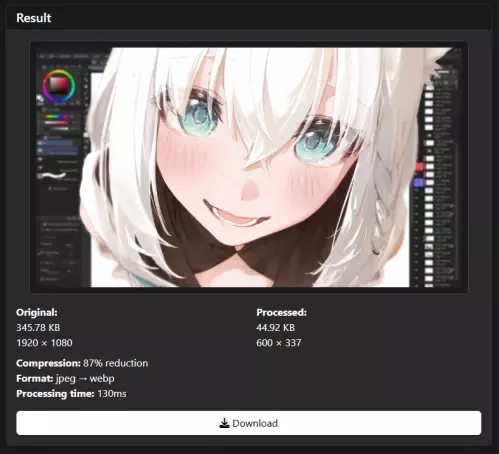
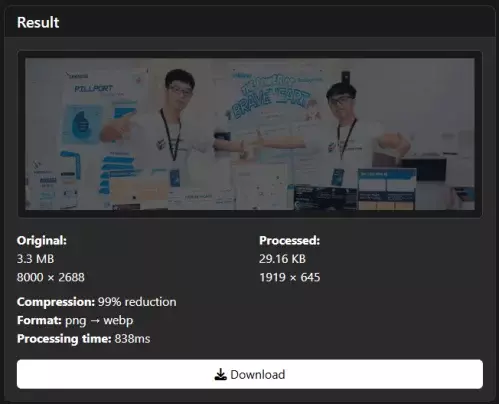
- When the process is complete, you will see the results displayed, including the original image size, the size after processing, and the percentage of file size reduction.
- Click the "Download" button to save the resized, compressed, and converted WebP image file to your computer.
- If you uploaded multiple images, there will usually be an option to download them as a ZIP file for convenience.
Illustration example:
Suppose you have a landscape photo with a file size of 2MB and dimensions of 4000x3000px. You want to use it as a banner image on your website, with an actual display size of 1200px width.
- Upload the image to the tool.
- In the Resize section, enter "1200" in the Width box and let the tool automatically adjust the Height to maintain the aspect ratio.
- In the Compress section, choose "Lossy" compression or leave it as default.
- Select "Convert to WebP".
- Click "Start".
The result might be a WebP file of only about 150-250KB, with display quality still very good on the website, helping your page load significantly faster.
5. Outstanding benefits of using the WebP format
Converting to the WebP format is not just a trend but also brings practical benefits, especially for your website. Here are the highlights:
a) Significant file size reduction:
- As mentioned, WebP can reduce file size by 25-35% compared to JPG and PNG while maintaining equivalent or even better image quality. This means your website will load faster, and users will have a smoother experience.
- Real-world data: A Google study showed that converting to WebP can reduce file size by 25% to 35% compared to JPEG and PNG.
b) Improved User Experience (UX):
- Faster page load speed directly leads to a better user experience. They don't have to wait long to view the content, resulting in higher satisfaction, longer time spent on the page, and a higher chance of returning.
- Example: Imagine you are searching for information on your mobile phone with an unstable network connection. If a website loads instantly with sharp images, you will feel much more satisfied than having to wait for a heavy image-filled page to display piece by piece.
c) Enhanced SEO performance:
- Google prioritizes fast-loading websites. By using WebP, you are directly improving one of the most important factors in Google's ranking algorithm.
- Case study: Many websites have seen a significant improvement in search rankings after optimizing images and switching to the WebP format.
d) Support for advanced features:
- Transparent background: WebP supports transparent backgrounds, similar to PNG, allowing you to use images with separated graphic elements without needing a white or any other colored background.
- Animated images: WebP can also create animated images, similar to GIF, but with better compression and 24-bit color support.
e) Increasingly broad compatibility:
- Although a relatively new format, WebP is supported by most modern web browsers (Chrome, Firefox, Edge, Safari) and popular platforms.
- For browsers that don't support WebP, you can use "fallback" techniques to display the image in JPG or PNG format instead, ensuring display on all devices. The tool at khaizinam.io.vn/img-compress helps you create high-quality WebP files, ready for this implementation.
Leveraging the WebP format through tools like khaizinam.io.vn/img-compress is a strategic step to improve the overall performance of your website.
6. Common mistakes in image optimization
Despite the goal of improving performance, many users still make common mistakes when processing images. Identifying and avoiding them will help you achieve the best results.
a) Over-compressing, severely degrading image quality:
- Cause: Applying too high a "lossy" compression level or choosing the wrong compression algorithm for the specific image type.
- Consequence: Images become blurry, show pixelation, colors are distorted, resulting in poor aesthetics and unprofessionalism.
- Solution: Always thoroughly check the image quality after compression. Use tools with sliders to fine-tune the compression level or select "high quality" options if available. Prioritize lossless compression for important images like logos, charts, or when quality is the absolute priority.
b) Not resizing images:
- Cause: Using the original, excessively high-resolution image (e.g., photos taken with a DSLR camera) for positions on the website that do not require that level of detail (e.g., thumbnails, in-article images).
- Consequence: Huge file size, unnecessarily slowing down page load speed, even after compression.
- Solution: Always determine the desired display size of the image on the website and resize it to that dimension (or slightly larger to ensure good display on large screens).
c) Using the wrong image format:
- Cause: Using PNG for colorful landscape photos or using JPG for images with transparent backgrounds, or logos with sharp lines.
- Consequence: Larger file size than necessary, non-optimal quality. For example, a landscape photo using PNG will have a very large file size compared to JPG.
- Solution: Use JPG for photos, landscapes, images with many colors and gradients. Use PNG for logos, icons, graphics with transparent backgrounds, or images requiring high sharpness with fewer colors. And most importantly, switch to WebP when possible.
d) Ignoring animated image optimization (Animated GIFs):
- Cause: Animated images often have very large file sizes and are not optimally supported by traditional formats.
- Consequence: Severely slows down the website, causing user discomfort.
- Solution: If possible, consider converting animated images to animated WebP or MP4 (video) format for smaller file size and better performance.
e) Not using Alt Text (Alternative Text):
- Cause: Underestimating the importance of Alt Text.
- Consequence: Undisplayed images will lack descriptions, affecting accessibility for visually impaired users or those using screen readers. Negative impact on SEO because search engines do not understand the image content.
- Solution: Always add Alt Text that accurately describes the image content, using relevant keywords naturally.
f) Using too many unnecessarily high-quality images:
- Cause: The belief that "the prettier, the better" without considering the purpose of use.
- Consequence: The website becomes heavy, loads slowly, and wastes resources.
- Solution: Only use high-quality images when truly necessary and meaningful to the content. For supplementary illustrative images, prioritize file size and speed.
g) Not checking compatibility across different devices:
- Cause: Only considering one type of device or browser.
- Consequence: Images may display incorrectly sized, be cropped, or fail to load on some mobile devices or older browsers.
- Solution: Always check the website interface on various devices (desktop, tablet, mobile) and different browsers to ensure images display well everywhere.
Avoiding these mistakes, combined with using effective tools like the one at khaizinam.io.vn/img-compress, will help you optimize your images thoroughly.
7. Frequently Asked Questions (FAQ)
Question: Is the image resize, compress, conversion tool at khaizinam.io.vn/img-compress truly free?
Answer: Yes, it is completely free. You can use all the tool's functions without registration, payment, or any limits on the number of images. We provide this service to support the community.
Question: Is the WebP format compatible with all browsers?
Answer: Most modern web browsers (latest versions of Chrome, Firefox, Edge, Safari) support the WebP format. However, older or less common browsers may not support it. You can use "fallback" techniques to display JPG or PNG images for these browsers, ensuring a consistent experience.
Question: Does image compression cause loss of important details?
Answer: Image compression has two main types: lossy and lossless. Lossy compression removes some visually unnecessary data to maximize file size reduction, which may slightly affect quality if compressed too strongly. Lossless compression retains all details but reduces file size less. The tool at khaizinam.io.vn/img-compress allows you to choose or automatically optimize to balance file size and quality.
Question: How many images can I upload at once?
Answer: The tool supports uploading multiple images at once (batch processing). You can select multiple image files from your computer to process simultaneously, saving significant time.
Question: After processing, what format can I download the images in?
Answer: This tool primarily focuses on conversion to the WebP format. You will download images that have been resized, compressed, and converted to WebP format. If you need a different format, you may need to use a more specialized tool or perform an additional conversion step afterward.
Question: How do I know if an image has been well-optimized?
Answer: You can compare the file size before and after processing. A significant reduction in file size (e.g., from a few MB to a few hundred KB) while maintaining good display quality is a sign that the image has been effectively optimized. You can also use website speed testing tools like Google PageSpeed Insights to evaluate the impact.
8. Conclusion and Call to Action
In today's competitive digital world, website speed and performance are the deciding factors for success. Images, while important decorative elements, are often the "bottleneck" causing delays. Having an effective, free, and easy-to-use online JPG, PNG to WebP image resize, compress, and conversion tool like the one at khaizinam.io.vn/img-compress is a huge advantage.
This tool not only helps you significantly reduce image file size through compression and conversion to the modern WebP format but also allows resizing to fit every need. The result is a faster-loading website, a smoother user experience, improved SEO rankings, and increased conversion potential.
Don't let large-volume images hinder your growth. Access khaizinam.io.vn/img-compress now to start experiencing and optimizing images for your website today!
If you are looking for more comprehensive solutions for your website, from design, development to SEO optimization and performance, don't hesitate to contact us. The team of experts at khaizinam.io.vn is ready to accompany you on the path to online success.
Chia sẻ bài viết












Bình luận
Chia sẻ cảm nghĩ của bạn về bài viết này.